
Approve leave requests and add them to the team calendar
Leave requests wait for a manager's OK, then land on the team calendar and in your leave tracker, and the employee hears back by email.
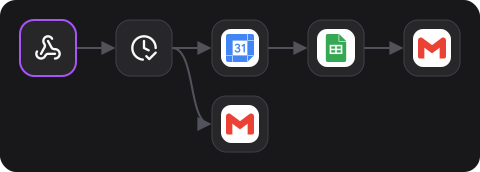
How it works
An employee asks for time off through your form or HR tool. A manager approves or rejects it in Blokkio. Approved leave becomes an all-day event on the shared team calendar and a row in your Google Sheets leave tracker, and the employee gets a confirmation email; a rejection sends a friendly note instead.
-
Leave Request
Starts with: Webhook Trigger
Your leave form or HR tool sends each request here.
-
Manager Approval
Approval Gate
Waits up to three days for a manager to approve or reject the request.
-
Add to Team Calendar
Google Calendar
Adds the leave as an all-day event on the team calendar.
-
Let Employee Know
Gmail
Emails the employee that the request was not approved.
-
Log in Leave Tracker
Google Sheets
Adds the approved leave to your Google Sheets leave tracker.
-
Confirm to Employee
Gmail
Emails the employee that their leave is approved.