
Approve expense claims and log them in Google Sheets
Small expense claims are approved straight away; bigger ones wait for a manager. Every approved claim is logged and the employee hears back.
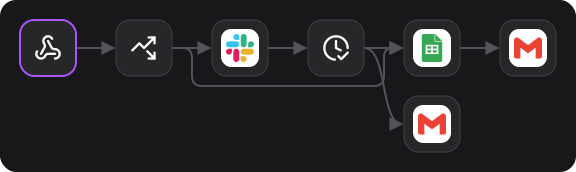
How it works
Send expense claims from any form to this workflow. Claims up to 100 are approved automatically; larger ones are posted to Slack and wait for a manager to approve or reject them in Blokkio. Approved claims are added to your expense sheet and the employee gets an email either way.
-
New Expense Claim
Starts with: Webhook Trigger
Receives each expense claim from your form.
-
Needs Approval?
If / Else
Checks whether the claim is over 100 and needs a manager's OK.
-
Ask for Approval
Slack
Tells your approvers in Slack that a claim is waiting.
-
Log Expense
Google Sheets
Adds the approved claim to your expense sheet. Choose the spreadsheet once.
-
Manager Approval
Approval Gate
Waits up to 3 days for a manager to approve or reject the claim.
-
Tell Employee: Approved
Gmail
Emails the employee that the claim was approved.
-
Tell Employee: Rejected
Gmail
Emails the employee that the claim was not approved.